Getting Started with eCommerce#
Scope. This page is the end-to-end tutorial for the eCommerce edition: install the binary, configure the store, publish legal pages, create products, take an order — manual bank transfer or Midtrans card/e-wallet — and work it through to delivery. For the full option reference, see configuration; for what each commerce module owns, see built-in-modules. A running example with sample products lives in the lesstruct-ecommerce-demo repository.
1. Install and first run#
Install the eCommerce edition (see editions for the other binaries):
| |
Then start it in your store directory:
| |
Three things to know about the first boot:
- Before the first start, put a
PII_MASTER_KEYin.env— a base64-encoded 32-byte key:The commerce edition refuses to start without it. Customer PII (order email, name, phone, shipping snapshot, payment references) is encrypted at rest with AES-256-GCM. Back this key up alongside your database dumps — there is no rotation or recovery path; losing it makes encrypted customer data permanently unreadable.1openssl rand -base64 32 - Open
/admin. The first login completes first-login setup: set the admin password. - Every login after that is two-step: password first, then a 6-digit
code emailed to
ADMIN_EMAIL. The code expires in 5 minutes, is single-use, and resending has a 60-second cooldown. The storefront login (/login) is two-step the same way.
Keep .env secrets safe: JWT_SECRET, ADMIN_PASSWORD,
PII_MASTER_KEY, SMTP_PASSWORD, API keys. Never commit them.
2. Configure the store#
The settings below live in config.toml (full schema in
configuration) and .env. The ones that matter for
selling:
| File | What to set |
|---|---|
.env → PII_MASTER_KEY | Required. Generate with openssl rand -base64 32. Missing or invalid = startup fails closed. |
config.toml → [catalog] | post_type (defaults to "product"), currency (base currency — checkout always uses it), notify_email for low-stock alerts. Optional [[catalog.display_currencies]] (e.g. USD toggle — display only). |
config.toml → [site_config] | name, logo, hero_image (upload via Media first, copy the URL). |
config.toml → [payments] | methods defaults to ["manual"]. Add "midtrans" (keeping "manual") to offer hosted card/e-wallet checkout alongside manual transfer — see section 7. Requires MIDTRANS_SERVER_KEY in .env (the Sandbox Server Key, SB-Mid-server-… — a Merchant-ID-shaped value fails with 401 at mint time). MIDTRANS_IS_PRODUCTION=false for sandbox. |
config.toml → [payments.manual] | Your bank details — bank, account, name. All three are required (a partial block fails startup by design). Shown to buyers on the tracking page (“How to pay”) and in the order-confirmation email. Without this block, buyers get no transfer destination. |
config.toml → [invoice] | seller_name, seller_address, seller_tax_id, tax_rate (default PPN 12%). Prefer the admin UI (admin → Invoice settings) over hand-editing: it validates, writes the block back atomically, and applies to the next invoice without a restart. tax_rate = 0 is supported for non-PKP sellers. |
config.toml → [orders] | pending_expiry (default 24h): how long a pending order stays payable before the sweeper expires it and emails the buyer. |
config.toml → [registration] | enabled = true allows public sign-up at /register even with [comments] enabled = false. New accounts verify by email link, then can sign in. |
config.toml → [legal] | Optional overrides: consent flags (checkout_consent, registration_consent), policy URLs, legal_nav placement. Defaults are compliant out of the box once the four legal pages below exist. |
.env → SMTP_* | Required for order confirmations, payment/status emails, registration verification, and login codes. |
First-time visitors also see a cookie consent banner (language and currency preferences). It links the cookie policy page; Accept stores the choice, and the cart itself uses strictly-necessary storage only.
3. Publish the legal pages#
Legal documents stay ordinary bilingual page content. Publish them under
these conventional slugs and the platform resolves each translation group in
the visitor’s language, links them in the footer, and backs the
checkout/registration consent checkboxes with them:
| Document | Slug |
|---|---|
| Privacy Policy | privacy-policy |
| Terms of Service | terms-of-service |
| Cookie Policy | cookie-policy |
| Returns & Refunds | returns-refunds |
With the terms and privacy documents resolving (or a [legal] flag forcing
the gate), checkout and registration render a required terms/privacy
checkbox and enforce it server-side — an unchecked submission is
rejected even without JavaScript, and the accepted document revision is
recorded on the order or user row.
4. Enable buyer accounts (optional, recommended)#
With [registration] enabled = true:
- The buyer opens
/register, ticks the terms + privacy consent checkbox, and submits. Duplicate usernames/emails are rejected with a clear message. - The account is created
pendingand a verification email is sent. The buyer cannot log in yet — the login page says to verify first. - Clicking the email link verifies and activates the account. Admins can watch the Pending Registrations queue in admin → Users for accounts that never verify.
- Login is then the usual two-step: password + emailed 6-digit code.
Guest checkout works without any of this — but signed-in buyers get their email and name pre-filled, and repeat buyers skip retyping their address.
5. Create products#
Selling needs two records for each product — the content shoppers see and the catalog data that makes it buyable. Content alone is not buyable.
5a. Content (admin → Products → Create New Post)#
- Title, slug (auto-generated, editable while draft).
- Content Type → Products (defaults to Page — switch it to reveal the product fields).
- Tags = categories (
tshirt,hoodie, …). New lines need no schema change — just new tags. Material(text),Imagesgallery,Excerpt, featured image.- Body text; the card photo comes from the explicit featured image first, then body/gallery, then a placeholder.
- Save Draft first. Publishing puts it on the storefront.
5b. Catalog data (same screen, Catalog panel below the fields)#

- Price (integer minor units, e.g.
299000= IDR 299,000), optional Sale price, SKU (e.g.LSM-TS-001). - Track inventory on; Stock; Low stock threshold (alerts
notify_emailwhen a bucket crosses it downward). - Variant axes — at least one axis is required, even for one-size
items (e.g.
Size: One Size). Generate variants, then fill each variant’s SKU / price / stock. - Click Save catalog data (separate from content save — the panel reminds you).
Verify on the storefront: price, per-size availability, SKU updating per variant. A variant with 0 stock disables its chip; a product whose variants all run out shows out of stock.
6. Take an order (the manual-payment loop)#
Buyer side#
- The shopper adds items (size chips first — Add to cart stays disabled until a variant is picked), adjusts the cart, and checks out with email + name + shipping address (all required; phone optional).
- Before placing the order the buyer ticks “I agree to the Terms of Service and the Privacy Policy” (links included). The server rejects the order without it — the checkbox is enforced, not decorative.
- The order is created
pending(ORD-00000N) and the buyer gets an “Order confirmed” email with items, SKUs, totals, and the How-to-pay block (bank, account, name + “include your order number in the transfer note”). - On Track order (
/orders/track, order number + checkout email) the buyer sees Awaiting payment, the same How-to-pay block, and the Manual transfer panel: paste the bank reference / transaction ID → Submit proof. Status becomes “Payment proof received and awaiting verification.” The store gets a “Payment received” email with the reference. - Buyer tracking progresses through Placed → Paid → Packed → Shipped → Delivered as you work the order.
Admin side#

- Admin → Payments: pending proofs show order, method, reference, amount, time — in whole IDR, no cents confusion.
- Open the order to inspect items + address, match the reference against
your bank statement, then Verify (confirm dialog) or Reject.
- Verify → order becomes
paid, variant stock is claimed, buyer gets an “Order update: paid” email. - Reject → payment marked rejected, order stays pending, buyer gets a “Payment rejected” email and can submit a corrected reference (creates a new payment row; the old one stays rejected).
- Verify → order becomes
- While the order is
pending, set the shipping cost in the order detail’s Shipping section (amount input → Set shipping; unset means free shipping,IDR 0). Do it before verifying: the window closes once the order leaves pending.
7. Card and e-wallet payments (Midtrans Snap)#
With "midtrans" in [payments] methods and a valid server key, the
tracking page gains a second chip next to manual transfer.
- The buyer picks Card / e-wallet → Pay now. The store mints a
Snap session and redirects to the Midtrans hosted page. The session
lifetime mirrors
pending_expiry, so a hosted checkout cannot outlive the order it pays. - Test in sandbox with the card
4811 1111 1111 1114(any future expiry/CVV, OTP112233). - After a successful payment Midtrans POSTs to
POST /api/v1/public/payments/midtrans/webhook(HMAC-signed with your server key). On localhost that callback can’t arrive — locally the order stayspendinguntil the webhook is received. In production, set the dashboard’s Payment Notification URL to that path. - On
settlement(cards:capture+accept) the order flips topaidexactly like a verified manual proof: stock claimed, payment row recorded asmidtrans / verified, buyer emailed, tracking shows Paid.refundnotifications refund the order and release the stock back to its buckets. Duplicate webhooks are idempotent; bad signatures, wrong amounts, and unknown orders are refused (403/400/404). - After paying, Snap returns buyers to the tracking page with the order, email, and tracking code in the URL, and the page auto-loads the order.
- Manual and gateway payments share one pipeline: a manual proof can’t be
submitted on a gateway-paid order, minting is refused once the order
leaves
pending, and admin Verify/Reject of a pending proof is refused (409) once its order paid another way. - A gateway outage or bad key surfaces as
502 GATEWAY_UPSTREAM(“the payment gateway call failed; the store is fine”) — check the key shape first (SB-Mid-server-…on sandbox; a misshapen key also logs a startup warning).
8. Fulfill the order#

Admin → Orders → order detail → Actions: Mark packed → Mark shipped → Mark delivered. Each step emails the buyer (“Order update”). Terminal states:
delivered(only Refund left),cancelled,refunded,expired.Invoice: Open invoice (PDF) right on the order detail — per-line totals + PPN breakdown. Seller identity and rate come from admin → Invoice settings (no config-file editing needed). With
tax_rate = 0the invoice carries no tax line at all (correct for non-PKP sellers).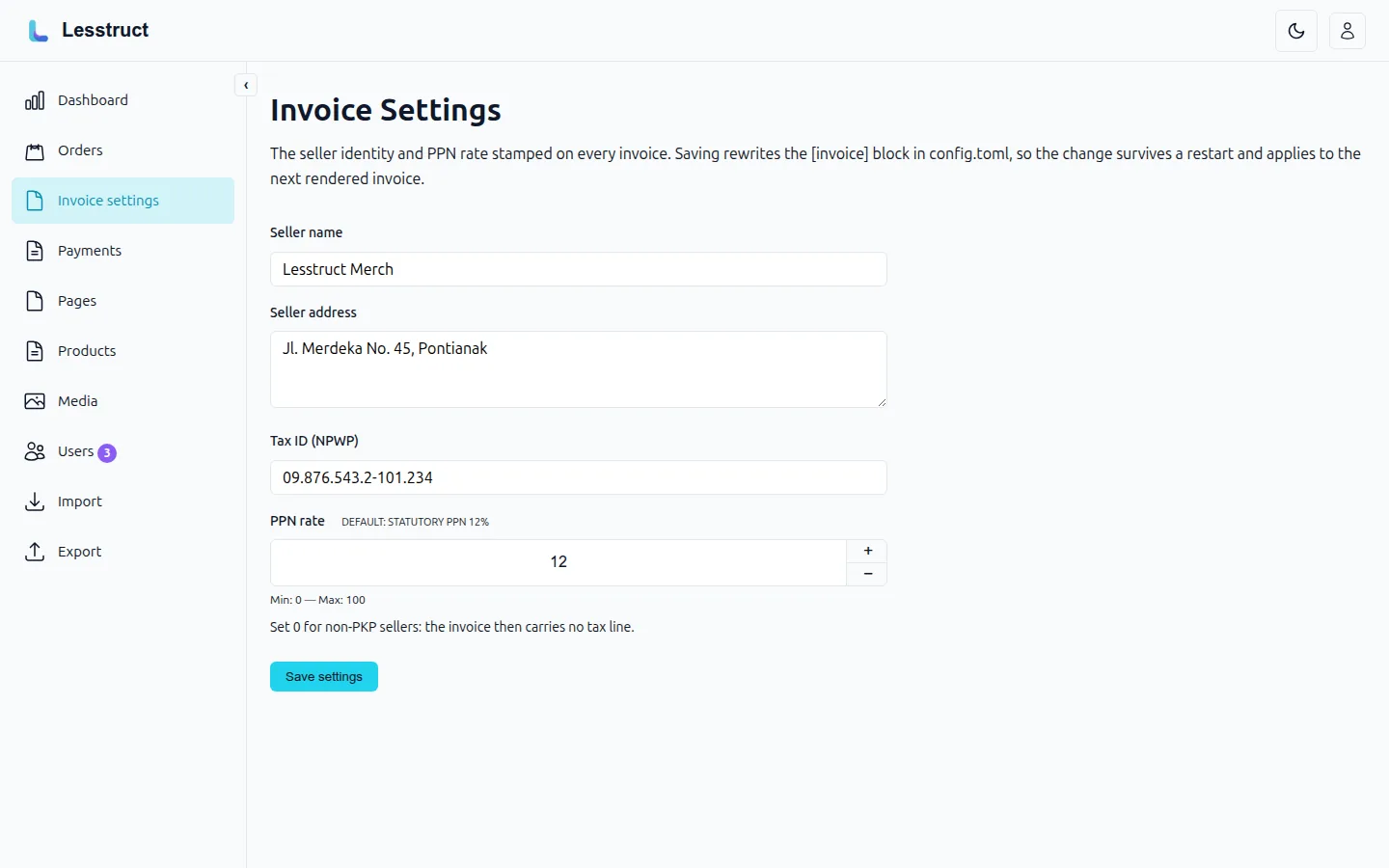
Saving rewrites the [invoice] block in config.toml — no restart needed. Refund releases the claimed variant stock back to its buckets. Cancel is for unpaid orders. Gateway-settled orders arrive already
paid, so there is no verification step — and because settlement closes the pending window, set the shipping cost before the buyer pays, the reverse of the manual loop’s advice.Expired orders (
pending_expiry, default 24h): the sweeper expires them automatically; proofs against them are refused. Wrong email on tracking/proof answers “not found” without leaking data. The same window bounds Snap session lifetimes (rounded up to whole hours), so an unpaid hosted checkout expires with its order.

9. Day-to-day operations#
- Registrations: admin → Users shows pending sign-ups and their verification state; approve or clean up unverified accounts there.
- Low stock:
notify_emailgets an alert when a tracked bucket drops to its threshold. - Backups: the SQLite file is the store — snapshot it before upgrades
or seeds, and back up
PII_MASTER_KEYwith every dump. Without the key, encrypted customer data cannot be recovered. - Gateway refunds flow through Midtrans notifications (section 7) — refunding from the Midtrans dashboard settles back through the webhook and releases stock.
- Emails to expect: registration verification, order confirmed, payment received, payment rejected, order updates (paid/packed/shipped/delivered/refunded), login verification codes, expiry notices.